I needed an SSH refresher, so I built a sandbox
Four fake computers in a browser tab — practice real ssh, ssh-keygen, scp and ~/.ssh/config without touching a real machine. Plus the copy-paste setup guide I kept re-Googling.
I SSH into something almost every day — the Unraid box, a Raspberry Pi in a grow tent, a VPS — and I still pause before typing ssh-copy-id. Not because it's hard. Because it's one of those commands you use often enough to know it exists and rarely enough to forget its exact shape. Same with the argument order for scp. Same with the six lines of ~/.ssh/config that turn ssh admin@192.168.1.10 into ssh server.
The usual fix is a browser tab full of Stack Overflow answers from 2014. I wanted something better, so I built myself a refresher and then realized it was worth handing to other people: SSH Lab. Four fake computers in a browser tab, a guided path through the commands that matter, and — the part I use most — a real-world setup guide sitting one click away.
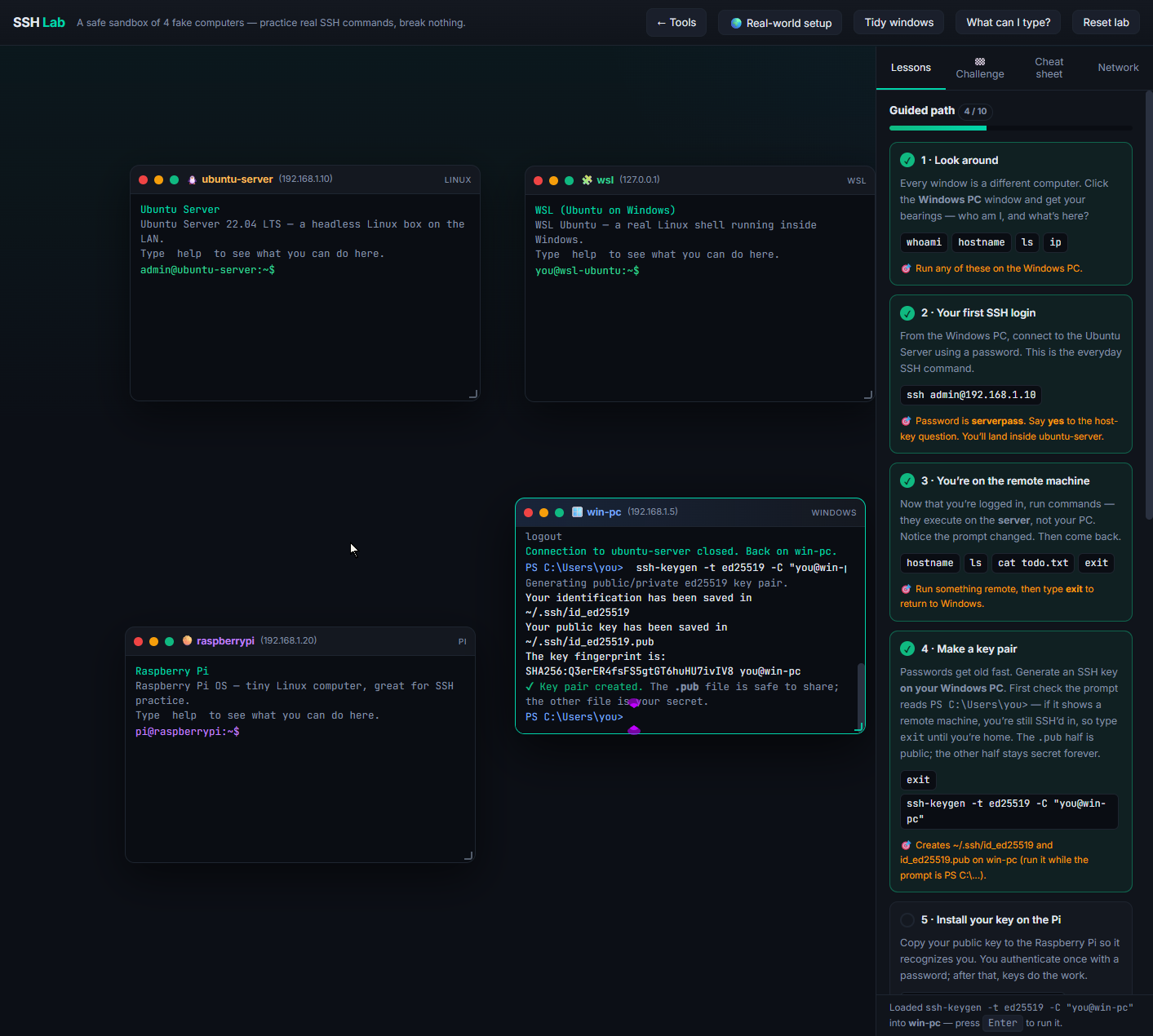
Four machines, no consequences
The lab opens with four terminal windows, each pretending to be a different computer on a fake 192.168.1.x LAN:
- win-pc — Windows, PowerShell prompt, OpenSSH client built in.
- ubuntu-server — a headless Linux box, the thing you're usually SSH-ing into.
- raspberrypi — the tiny Linux computer half of us actually learned SSH on.
- wsl — Ubuntu running inside the Windows PC, which behaves like its own machine and confuses everybody exactly once.
You can SSH from any window to any other. Drag them around, resize them, tidy them into a grid, reset the whole lab when you've made a mess. Nothing is real: there's no network, nothing leaves the tab, and no key you generate here exists anywhere. That's the entire point. You can fat-finger a host-key prompt, get locked out, chmod the wrong thing, and the worst outcome is you click Reset lab.
Ten lessons, in the order the confusion happens
The guided path walks from "what even is this window" to passwordless key auth and config aliases. Each lesson has a short explanation, clickable command chips that auto-type into the focused terminal, and a goal the lab actually watches for — it checks off when you do the thing, not when you read about the thing.
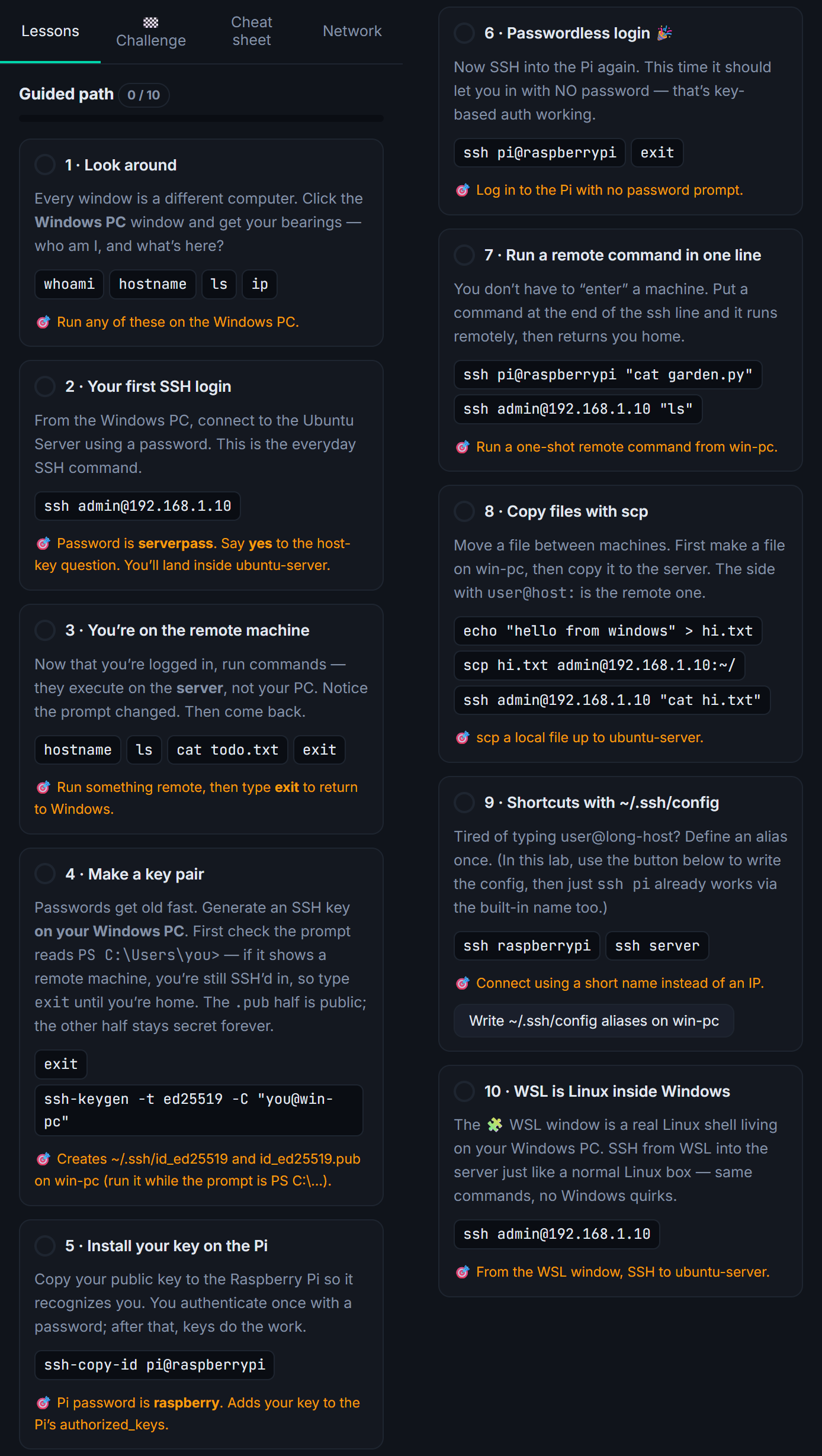
The thing I most wanted to land is lesson 3: when your prompt changes fromPS C:\Users\you>topi@raspberrypi:~$, you are typing on a different computer. Every other confusing thing about SSH — whylsshows the wrong files, whyexitmatters, why you generated a key in the wrong place — comes from losing track of which machine is listening.
After the path there's a Challenge tab: scored tasks with no hand-holding, phrased the way a coworker would ask ("get hi.txt from the Windows PC onto the server"). Hints are there if you want them, and taking one costs you nothing but pride. There's also a cheat sheet and a little network diagram, because I always want to know what the topology is before I trust a command.
The part I actually built it for
Simulators are nice. What I needed was the real commands, for the real machines, without a search engine in the loop. That's the Real-world setup button — a full reference sheet living inside the lab, split by platform: Windows, Linux server, Raspberry Pi, WSL, config & keys, and troubleshooting.
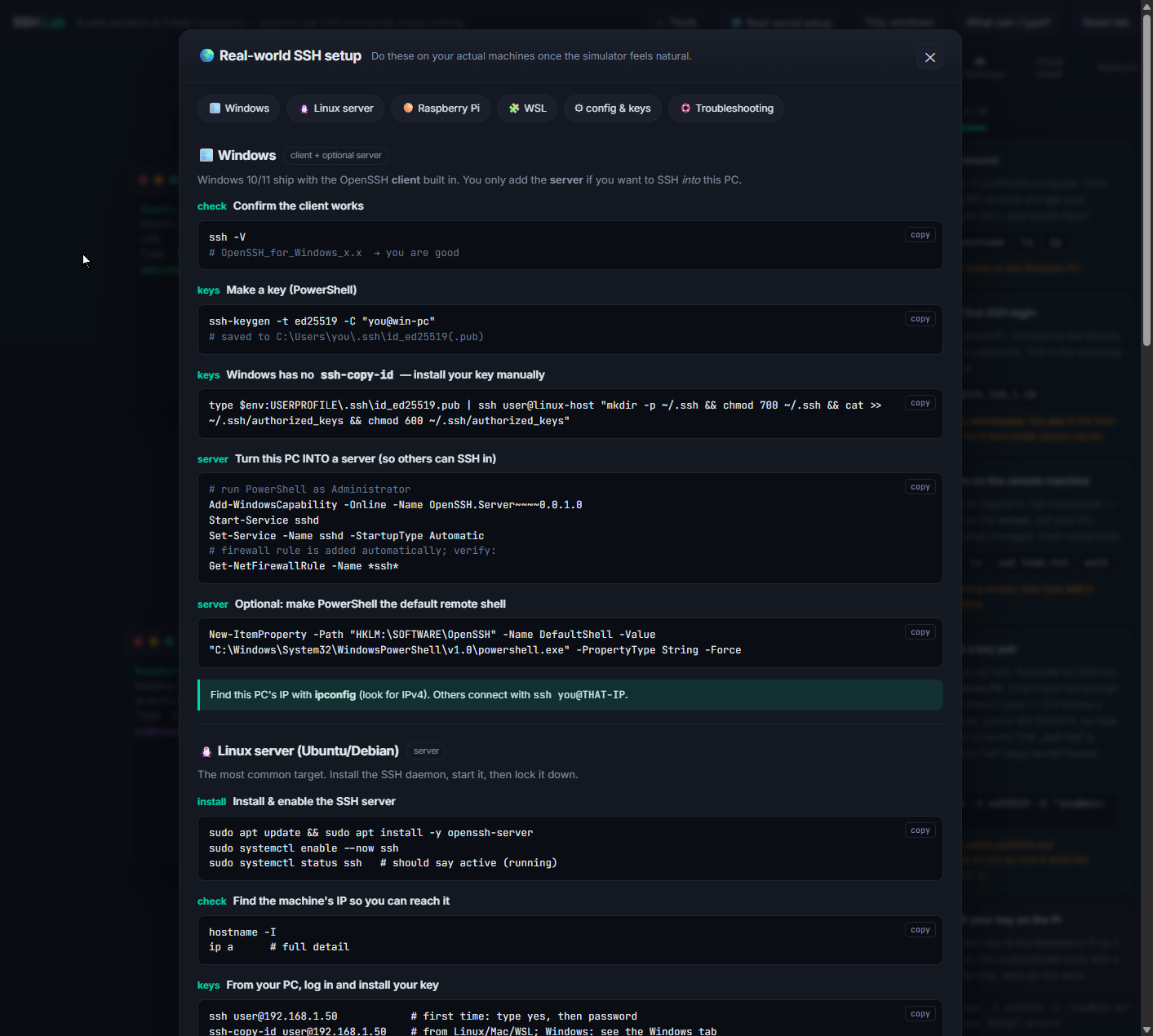
Every block is click-to-copy and keeps its comments, because the comment is usually the part I needed. It's the answer to the specific questions I kept re-asking:
- Windows has no
ssh-copy-id— so what's the one-liner that installs the key manually? (It's atypepiped into a remotemkdir/cat, and I will never remember it.) - How do I turn this PC into a server —
Add-WindowsCapability, thenStart-Service sshd, then set it to Automatic so it survives a reboot. - What are the permissions the SSH daemon silently insists on?
700on~/.ssh,600onauthorized_keys, and it will refuse you without saying so clearly. - What does a sane
~/.ssh/configentry look like so I can typessh piand be done.
Once you've done a lesson in the sandbox, the equivalent real command is a click away. That pairing — practice it fake, then copy it real — is the whole design.
What it isn't
It's a simulator, not an emulator. There's no shell underneath: a curated set of commands is understood, and everything else gets a polite "not in this lab." Type help in any window to see what that machine responds to. It won't teach you sed, it won't teach you Linux, and it can't replace breaking a real box at 1 a.m. It's a place to build the muscle memory for the ten or so commands that make up 95% of everyday SSH — and a reference for the day you need the other 5%.
It runs entirely in the browser, offline, in a single HTML file. Nothing to install, no account, no telemetry beyond the site's normal analytics.
Where this lives
SSH Lab is the first resident of a new /tools section — an experimental, educational corner of the site for things that teach an idea by letting you poke at it. It's deliberately small right now. More will land there as I build it, and the ones that aren't ready won't be listed until they are.
Go break something harmless: open SSH Lab.
Comments